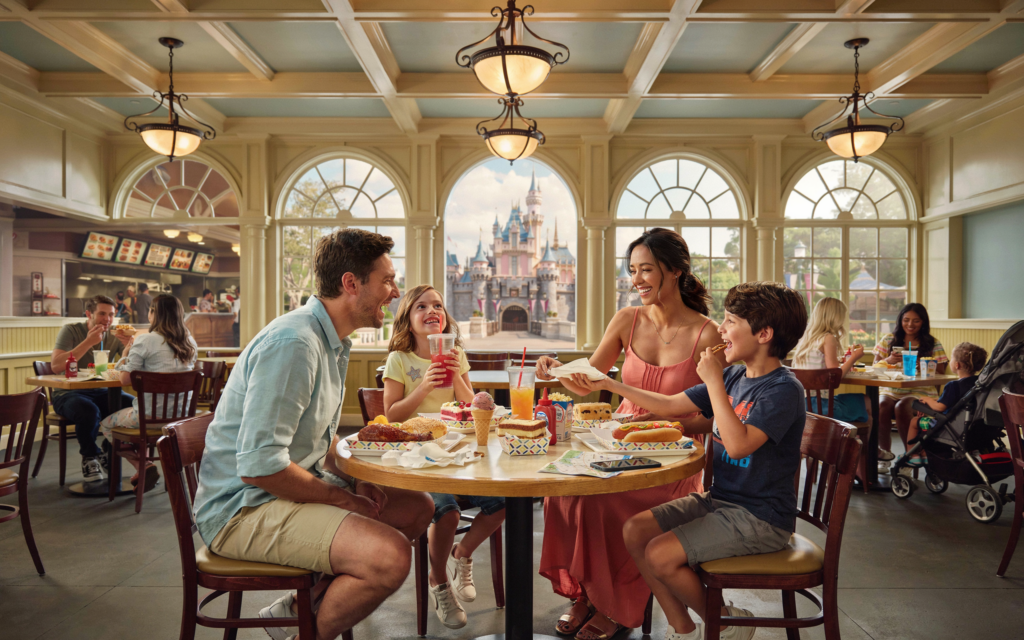
One of the easiest ways to lose time at Disney has nothing to do with attraction lines.
It happens when everyone suddenly realizes they’re hungry.
Now you’re trying to decide where to eat, compare menus, place an order, and find a table—all while standing in the middle of a busy park with tired, hungry family members.
It doesn’t have to be that way.
Mobile Order is one of the most valuable planning tools Disney offers, but I think many families use it the wrong way. Most families think of Mobile Order as a way to order food. I think of it as a planning tool that helps your entire day run more smoothly.
With a little planning, Mobile Order can help you avoid the busiest meal rushes, spend less time waiting for food, and even save money on your vacation.
In this guide, I’ll show you not only how Disney Mobile Order works, but the simple strategy I teach my concierge planning clients to make meals fit naturally into their park day—so they can spend less time figuring out lunch and more time enjoying the magic together.
What Is Disney Mobile Order?
Disney Mobile Order allows you to order and pay for food ahead of time using the official Disney app, so you can skip the traditional ordering line at many quick-service restaurants throughout the parks and resorts.
Whether you’re visiting Disneyland Resort or Walt Disney World Resort, Mobile Order is available through the app for your destination. Disneyland guests will use the Disneyland app, while Walt Disney World guests will use the My Disney Experience app.
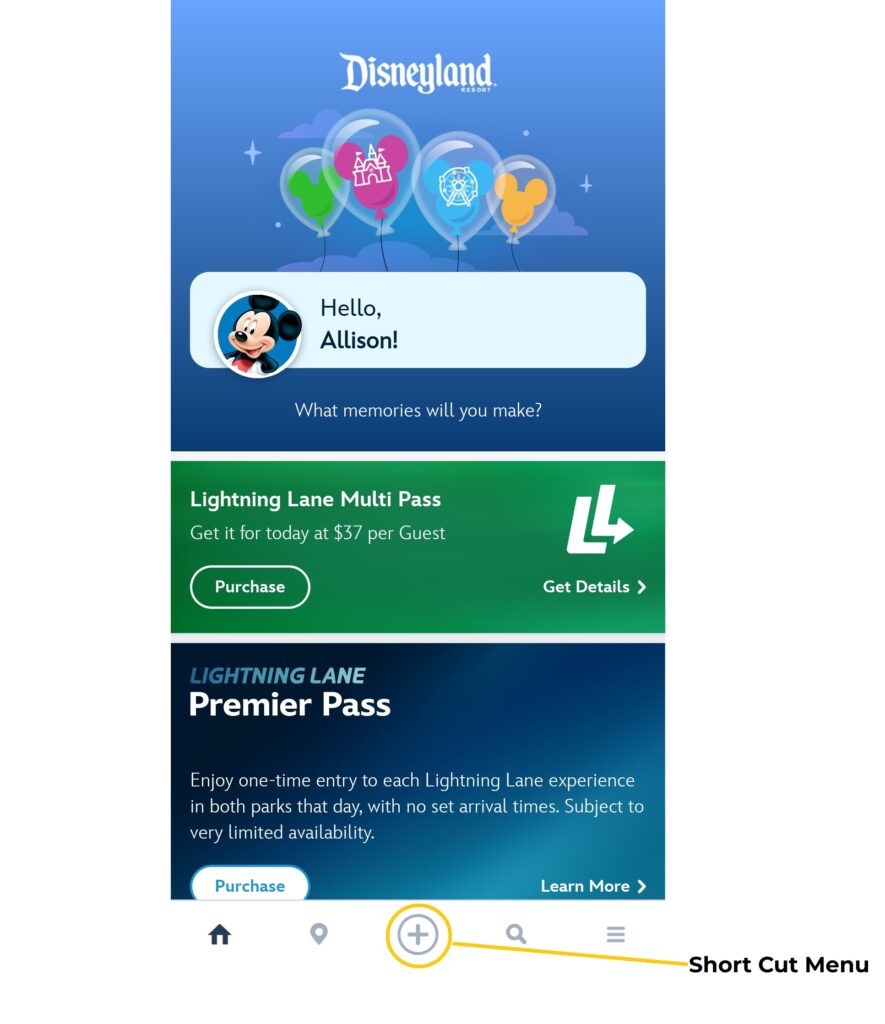
If you’re new to the Disney apps, start by opening the app for your destination. From the home screen, you’ll use the shortcut menu to access Mobile Food Orders. This is the method I recommend because I find it to be the quickest and easiest to remember.
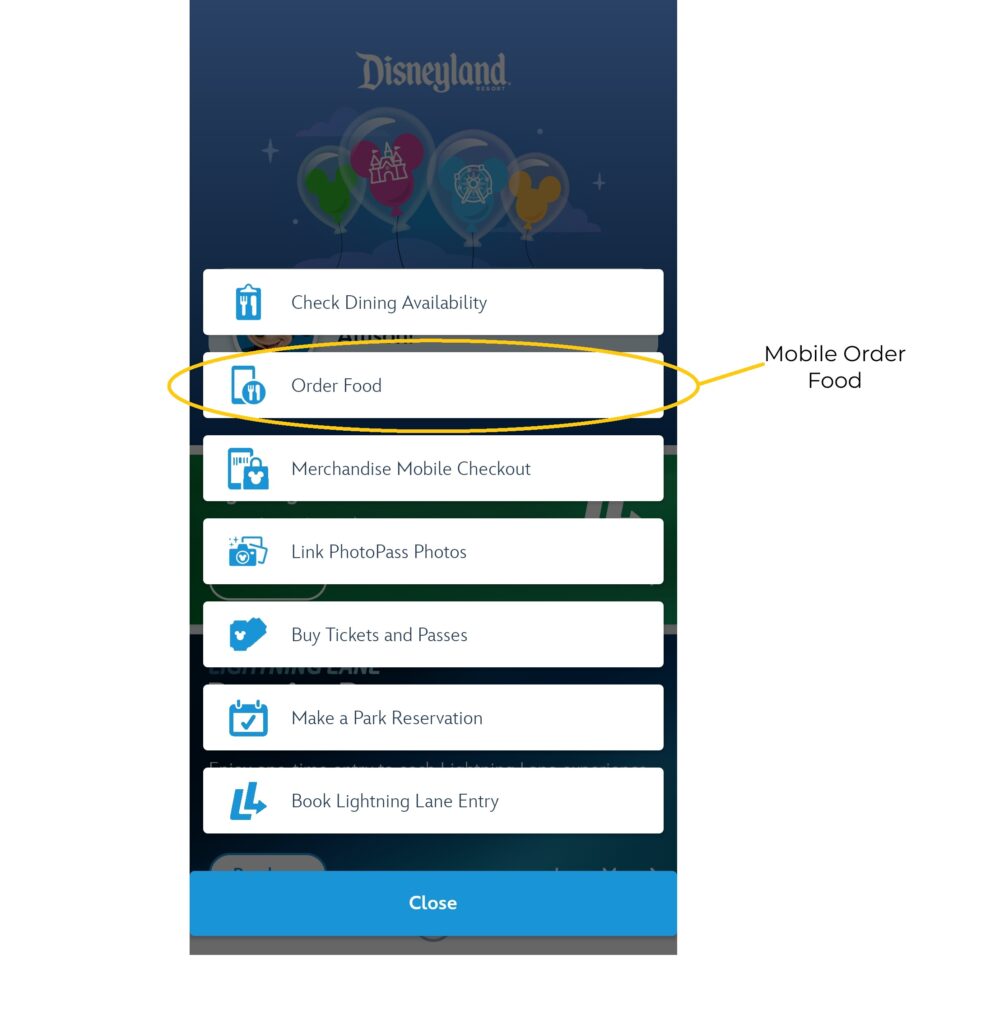
Most quick-service restaurants participate in Mobile Order, making it one of the easiest ways to save time during your vacation. If a restaurant offers Mobile Order, you’ll be able to view its menu, customize many menu items, choose a pickup time, and pay directly in the app.
When your pickup window arrives and you’re close to the restaurant, you’ll tap the “I’m Here, Prepare My Order” button. Disney will begin preparing your meal, and you’ll receive a notification when it’s ready to pick up.
The process itself is simple.
Knowing when to place your order, when to choose your pickup window, and how to fit meals naturally into your day is what really saves time.
That’s the strategy I teach my planning clients—and it’s the one I’m going to share with you next.
My Mobile Order Strategy for a Smoother Disney Day
Most families think of Mobile Order as a convenient way to order lunch.
I think of it as a planning tool.
Instead of waiting until everyone is hungry and then deciding where to eat, I use Mobile Order to make meals fit naturally into the flow of the day. With just a little planning, you can avoid the busiest meal rushes, spend less time waiting for food, and keep your family moving from one experience to the next without unnecessary interruptions.
Here are the simple strategies I teach my concierge planning clients to help them get the most out of Disney Mobile Order.
Step 1: Plan to Eat Outside the Busiest Meal Times
One of the easiest ways to save time at Disney is to avoid eating when everyone else does.
Most families head to lunch around noon and dinner around 6:00 p.m. As a result, restaurants become more crowded, pickup windows fill more quickly, and it can take longer to find a place to sit.
Instead, consider shifting your meals to less busy times. For example, try eating lunch around 11:00 a.m. before the lunch rush begins or around 2:30–3:00 p.m. after many families have already finished eating. The same idea applies to dinner. Eating a little earlier or later than the typical dinner rush can make the experience much more relaxed.
This simple change often means shorter waits, less crowded restaurants, easier seating, and a smoother flow to your day.
Step 2: Decide Where You Want to Eat Before Your Park Day
Another common mistake is waiting until everyone is hungry to decide where to eat.
By that point, you’re trying to compare menus, discuss options, and make a decision while standing in the middle of a busy park. That’s rarely the best time to make any decision.
Instead, spend a few minutes before your park day looking at the restaurants in the parks you’ll be visiting. Even narrowing your choices down to three or four restaurants can make the decision much easier later. You don’t need to plan every meal down to the minute, but it helps to have a few restaurants in mind that match your family’s tastes and are located near where you’ll already be spending your day.
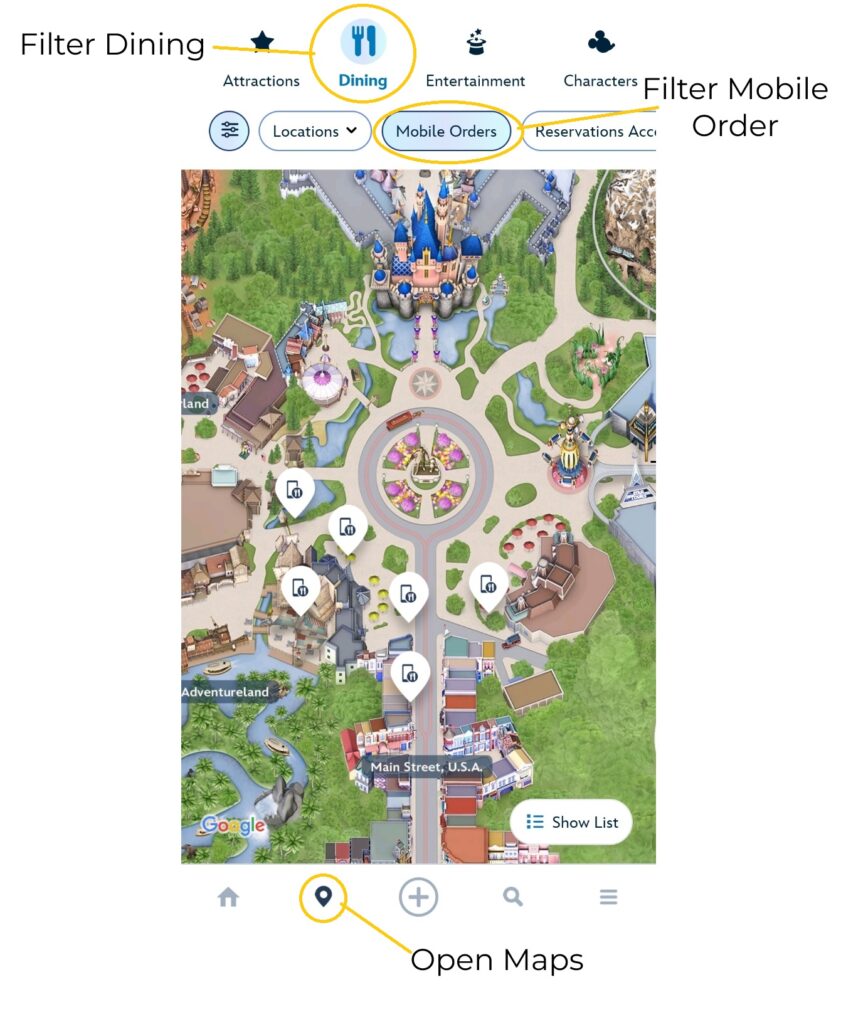
If you aren’t sure which restaurants are nearby, the park map in the Disney app is a great place to start. It makes it easy to see restaurants near your current location, along with whether they offer Mobile Order. I often use the map to quickly narrow down the best options before opening the Mobile Order menu to place an order.
This is exactly what I do for my concierge planning clients. As I build their personalized itinerary, I recommend quick-service restaurants based on their family’s dining preferences and where they’ll already be touring throughout the day. That way, when it’s time to eat, they already have several great options instead of starting the decision-making process from scratch.
Step 3: Reserve Your Pickup Time Early for Must-Visit Restaurants
If there’s a restaurant you know you don’t want to miss, don’t wait until you’re hungry to place your Mobile Order.
Whether it’s because of a favorite menu item, a fun atmosphere, or simply a convenient location that fits your plans, reserve your pickup window as soon as you know when you’d like to eat.
When you open Mobile Order, you’ll see two options at the top of the screen: As Soon As Possible and Schedule for Later. If you already know when you’d like to eat, choose Schedule for Later. The app will then display the available pickup windows for participating restaurants, allowing you to reserve the time that works best for your plans.
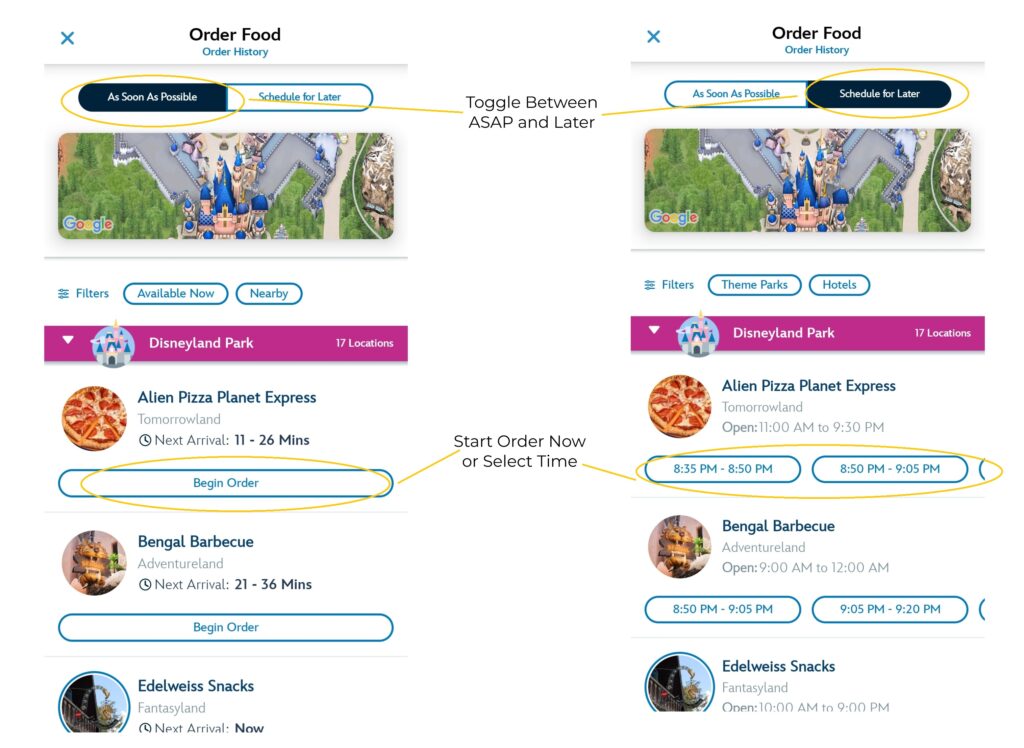
This became especially important when the parks reopened in 2021, when popular pickup windows could disappear early in the day. While availability has improved since then, popular restaurants and busy travel seasons can still fill desirable pickup times.
If eating at a specific restaurant is important to your family, securing your pickup window early gives you one less thing to worry about later in the day.
Step 4: Place Your Order While You’re Already Waiting
This is the strategy that saves my clients the most time.
Instead of stopping in the middle of your day to browse menus and place an order, use time you’re already spending in line for an attraction.
If you know you’ll be ready to eat after one or two more rides, open the app while you’re waiting in the queue. Browse the menu, customize your order, and submit it while you’re already standing still.
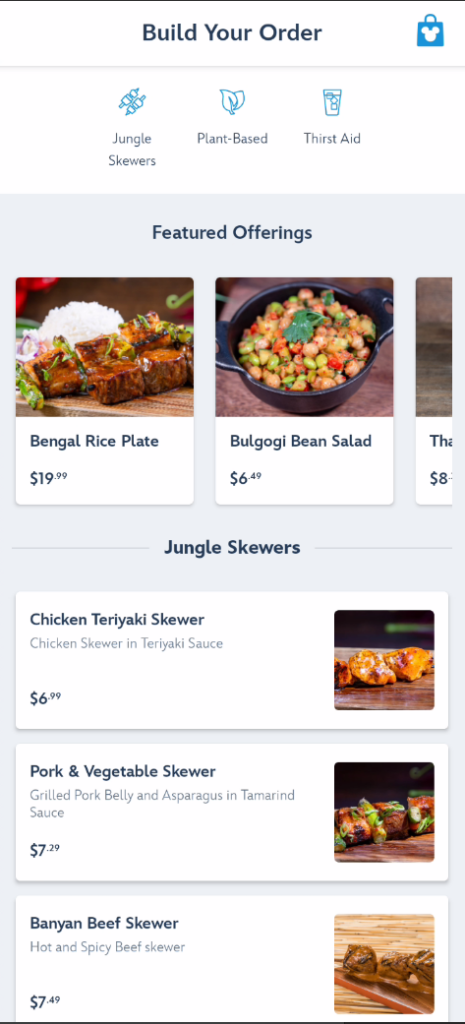
You’re turning waiting time into planning time.
Rather than spending fifteen or twenty minutes deciding what everyone wants once they’re hungry, you’ve already finished the ordering process before leaving the attraction. When the ride is over, you can simply head toward the restaurant.
It’s one of those small changes that makes your day feel much less rushed.
Step 5: Tap “I’m Here” Before You Arrive
One of the biggest misunderstandings about Mobile Order is when Disney actually starts preparing your food.
Your meal isn’t made when you place the order. It isn’t made when your pickup window begins.
Disney starts preparing your food after you tap the “I’m Here, Prepare My Order” button.
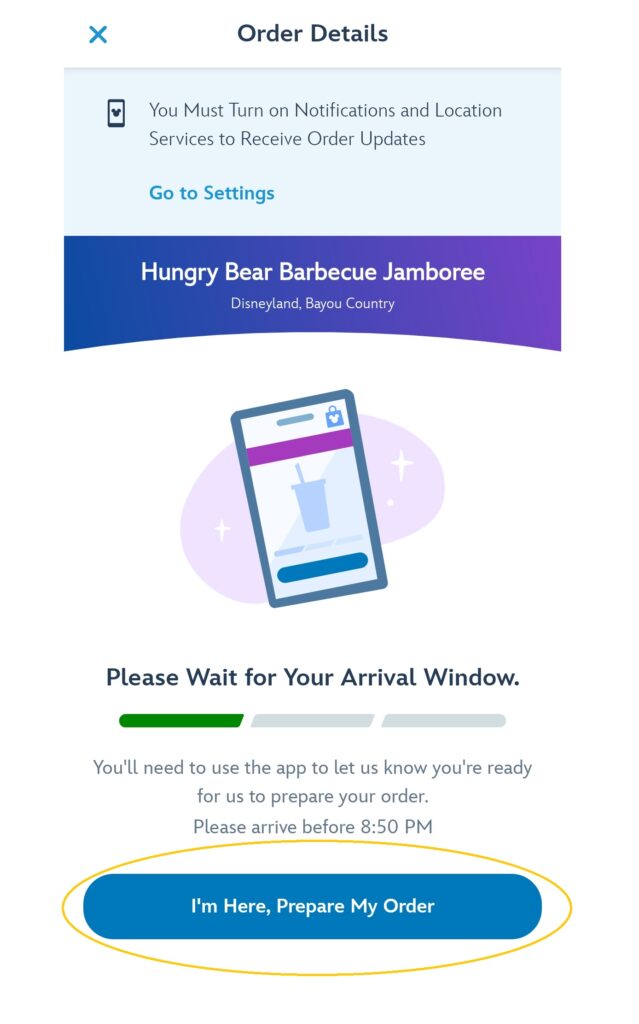
Instead of waiting until you’re standing outside the restaurant, I recommend tapping the button when you’re just a few minutes away and already walking in that direction.
By the time you arrive, your meal is often ready—or very close to it.
That means less waiting, fresher food, and a smooth transition from enjoying attractions to sitting down for a meal.
When you put all five of these strategies together, Mobile Order becomes much more than a way to order food. It becomes a simple planning tool that helps your day keep moving without unnecessary stops or stressful last-minute decisions. Notice that none of these strategies take more time to do. They simply move your decision-making to times when you’re already waiting instead of interrupting your vacation once everyone is hungry.
Save Money and Speed Up Checkout with Disney Gift Cards
If you regularly use Disney Gift Cards—or a Disney Rewards Redemption Card from the Disney Visa—Mobile Order can make paying for meals quick and convenient.
Both Disneyland Resort and Walt Disney World Resort allow you to use Disney Gift Cards and Disney Rewards Redemption Cards when placing a Mobile Order. Better yet, purchasing Disney Gift Cards at a discount before your trip is an easy way to reduce your vacation costs. Even saving 4% or 5% can add up over several days of meals and snacks.
The two destinations handle saved payment methods a little differently.
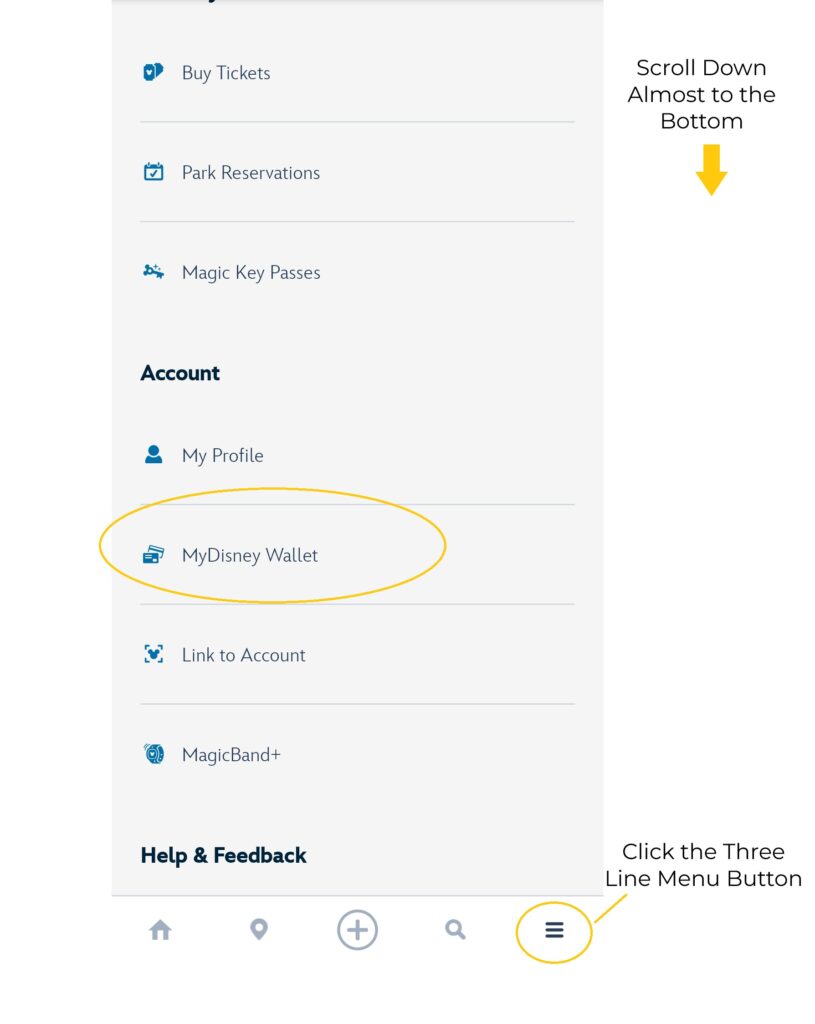
At Disneyland Resort, you can save your Disney Gift Cards and Disney Rewards Redemption Card in My Disney Wallet, found under the Account section of the Main Menu. Once they’re saved, they’re available during Mobile Order checkout, making it quick and easy to pay.
At Walt Disney World Resort, the My Disney Experience app doesn’t currently offer that same convenience. While you can save gift card information to your Disney account on the website, those cards don’t appear during Mobile Order checkout in the app. I recommend saving your gift card numbers in a secure notes app on your phone so you can quickly copy and paste them when you’re ready to place your order.
It’s a small tip, but little conveniences like this save time throughout the day—and that’s exactly what Mobile Order is all about.
Frequently Asked Questions
Can I change my Mobile Order pickup time?
Yes. If your plans change, open your Mobile Order in the app and select “Change Arrival Window.” You’ll be able to choose from the pickup windows that are currently available.
If you’re hoping to eat sooner, it’s worth refreshing the available times. Earlier pickup windows will occasionally become available if another guest changes or cancels their order. It’s not guaranteed, but it’s worth checking before settling for a later time.
Can I cancel a Mobile Order?
Yes. You can cancel your Mobile Order anytime before tapping “I’m Here, Prepare My Order.” Once you tell Disney to begin preparing your food, the order can no longer be canceled.
Can I use Mobile Order if I have food allergies?
In many cases, yes.
Disney does an excellent job identifying common allergens and dietary preferences within the Mobile Order menus, making it easy for many guests to find meals that fit their needs.
However, if you have a severe food allergy, concerns about cross-contamination, or need to discuss how your food will be prepared, I recommend ordering in person and speaking with a Cast Member. They can answer your questions, discuss preparation procedures, and help you choose the safest option for your situation.
The same advice applies if you need menu modifications that aren’t available through the app. Some allergy-friendly meals and customizations can only be ordered at the register.
What happens if I miss my pickup window?
Don’t panic.
If your pickup window has just expired, open your Mobile Order in the app and head to the restaurant’s Mobile Order pickup area as soon as possible. A Cast Member may be able to help recover your order, although it isn’t guaranteed.
Do I have to use Mobile Order?
No.
Most quick-service restaurants still allow you to order at the counter, and there are times when ordering in person is actually the better choice. If you have a severe food allergy, need menu modifications that aren’t available in the app, or simply prefer speaking with a Cast Member, ordering at the register is still a great option.
Mobile Order is a wonderful tool, but like any planning tool, it’s most effective when it’s used in the situations where it works best.
Final Thoughts
Mobile Order is one of the easiest tools Disney offers for saving time—but the biggest time saver isn’t the app itself.
It’s making your dining decisions before everyone is hungry.
When you know where you’d like to eat, reserve your pickup window ahead of time, and place your order while you’re already waiting in line for an attraction, meals become a natural part of your day instead of an interruption. You spend less time standing in line, less time making last-minute decisions, and more time enjoying the experiences you came for.
That’s really what good Disney planning is all about. It’s not about following someone else’s itinerary or trying to fit everything into one vacation. It’s about making a few intentional decisions before you need to, so your family can spend more time making memories together and less time figuring out what comes next.
Planning Your Disneyland Vacation?
These Mobile Order strategies are just one example of how a little planning can make your vacation feel smoother and less stressful.
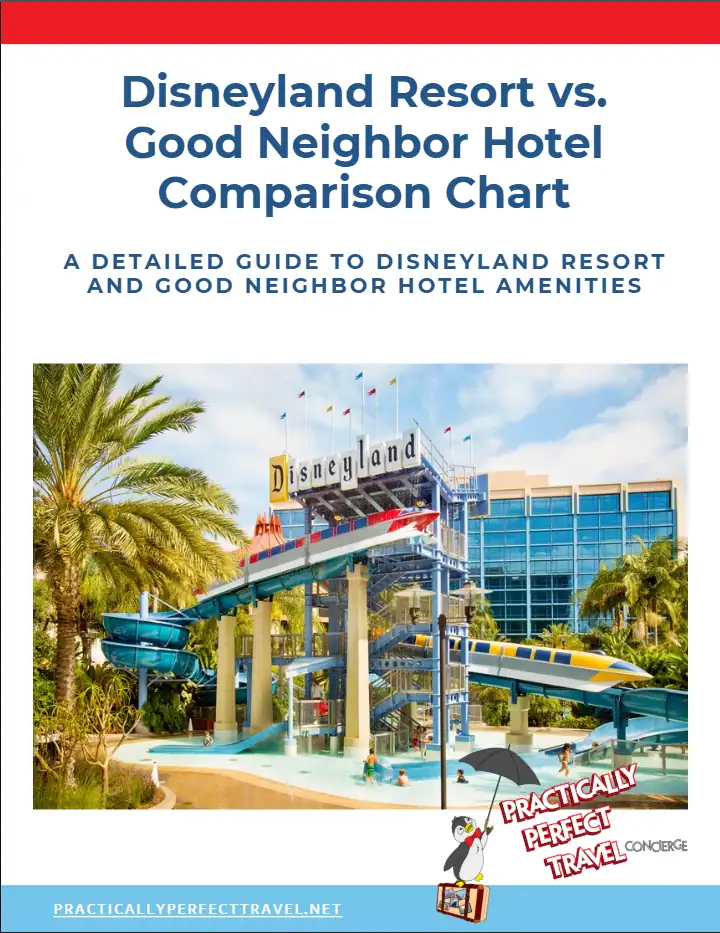
If you’re planning a Disneyland vacation, be sure to download my free Disneyland Hotel Comparison Chart. It compares walking distance, transportation options, room types, and family-friendly features to help you choose the hotel that’s the best fit for your family’s travel style. Click here or on the image to get your Comparison Chart.
If you’d rather skip the research and have a personalized Disney plan built around your family’s priorities, energy level, and travel style, learn more about my Concierge Planning Services. I’ll handle the planning so you can focus on enjoying the vacation together.